Screenshot redaction
Redact a screenshot before you share it.
Paste a copied screenshot or open an image from your device. Cover names, emails, IDs and other private details with solid redactions, then export a new image while keeping the useful context readable. Blivion processes the image in your browser.
On a phone, save the screenshot and choose the image file in the editor. Recent sessions can be saved in this browser; take care on shared devices.
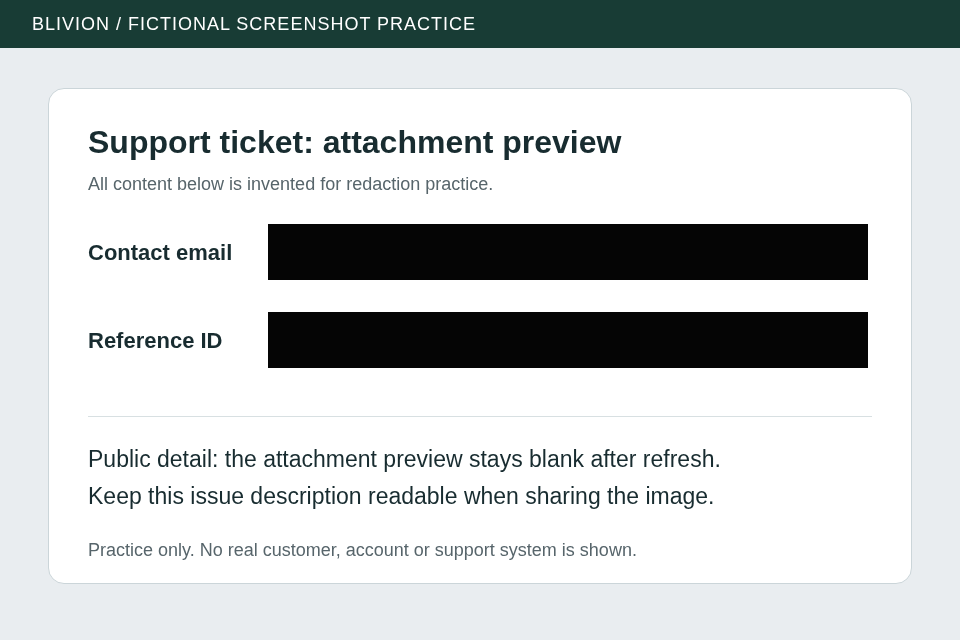
A real editor export of the fictional example below.
Before a public bug report
Keep the debugging evidence, review the surrounding details
An error screenshot can also reveal a URL token, signed-in account, local path, sidebar or notification. Try a fictional 502 failure with five areas to cover and actual downloads that preserve the diagnostic context.
Prepare a public bug report screenshotReview printed details and QR copiesA complete sharing workflow
From copied screenshot to reviewed download
Paste or choose the image
In the editor, focus outside text and number fields and press Ctrl+V or ⌘V after copying a screenshot. If your browser supplies only text or a link, save the image and use Choose an image or PDF. JPEG, PNG, WebP and GIF input are supported; PNG is a useful starting format for screenshot text.
Cover each private detail
Use Redact and draw a solid box with a margin around every sensitive field. With a keyboard or touch controls, choose Add centered redaction and adjust X, Y, Width and Height. Use Undo or Redo when needed. Check repeated details, browser bars, notifications and the rest of the image too.
Compare and export
Toggle Show original and Show protected to review your marks. Choose PNG and Standard Clean, then Export redacted image. Clean metadata only is a separate task: it leaves the visible screenshot unchanged, even if you drew marks.
Open the saved copy
Choose Download export and open that file. Zoom into every marked area: private details should be covered by solid bars and public text should stay readable. Check Verification details and warnings. Keep the JSON verification certificate if useful; it records local checks, not independent security assurance.
Original, reproducible example
Keep the issue description; remove the contact details
This invented support ticket has two fields to cover. Download the original, open it in the editor and apply the steps above. The result shown here was downloaded from Blivion after applying two solid redactions.
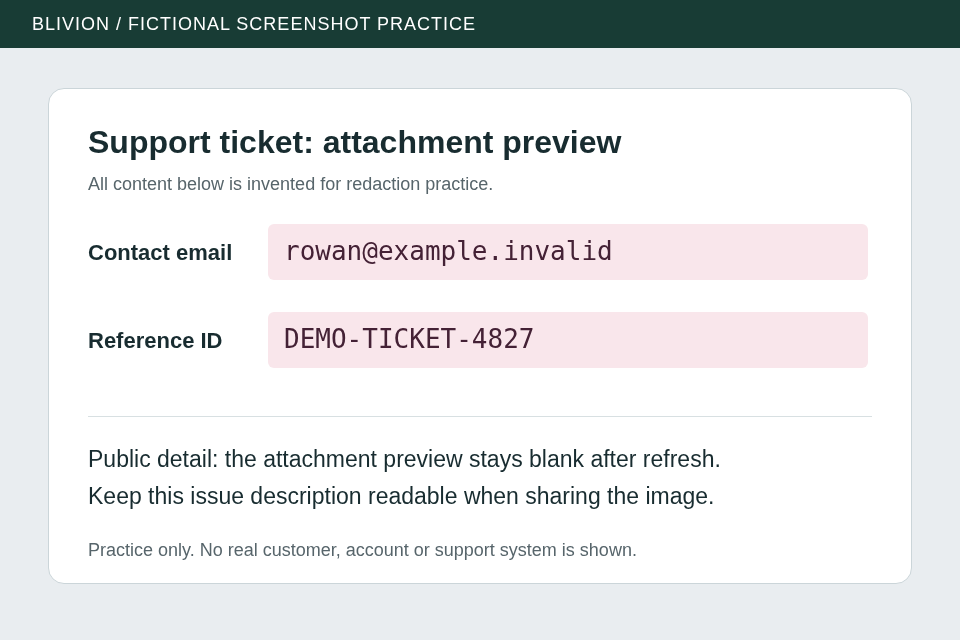
| Field | X | Y | Width | Height |
|---|---|---|---|---|
| Contact email | 268 | 224 | 600 | 56 |
| Reference ID | 268 | 312 | 600 | 56 |
Choose Add centered redaction once for each field, then enter that row’s coordinates. These values are specific to the sample; your own screenshots need their own marks and review.
Limits that matter
Review what the screenshot still reveals
Blur and pixelate are obfuscation. Use solid Redact or Brush marks when the information must be removed from the exported image. A preview alone does not prove the saved output.
Metadata cleanup cannot hide visible information. Blivion checks and strips supported metadata during export, but names, addresses, faces, locations and repeated identifiers still visible in pixels need marks.
Share the newest export. Pasting another image or changing marks, the clean profile or output settings invalidates the previous download. Export again and review the new copy. If you already saved an older file elsewhere, Blivion cannot delete or update it.