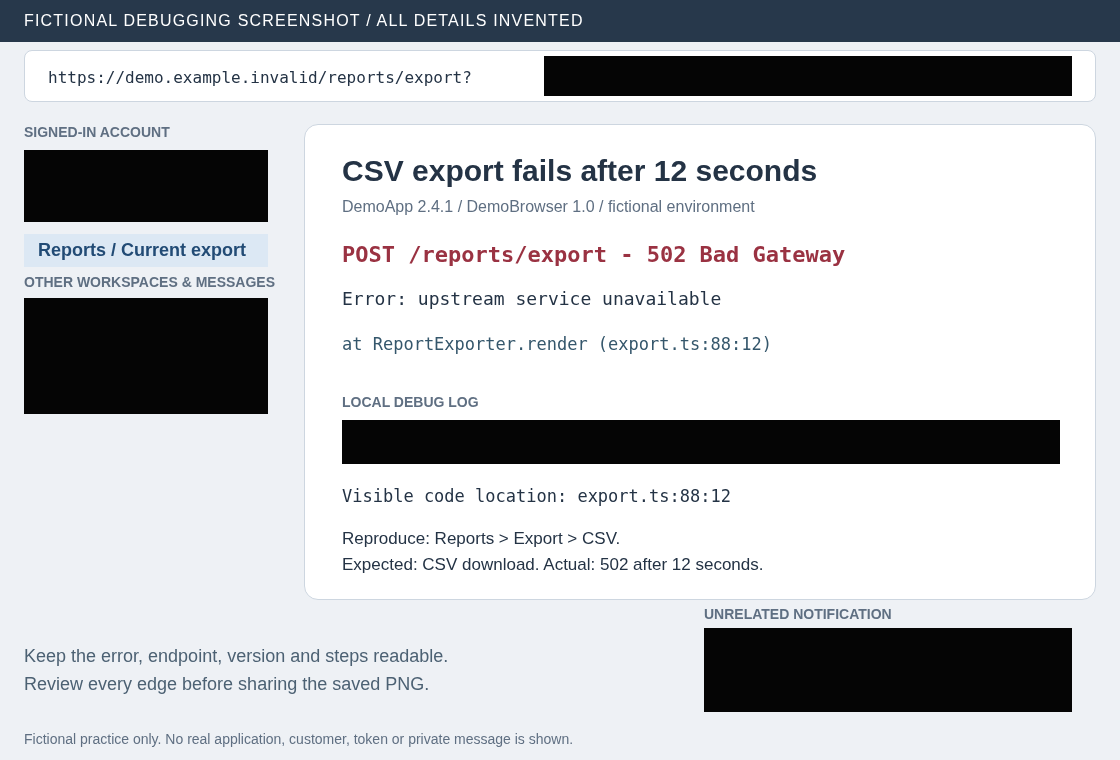
Keep the error and reproduction steps readable while covering private details around them. Review the whole image, export a new PNG, and inspect that saved copy before posting.
Manual marks, no automatic detection. The exercise loads a public fictional PNG from this site; editing stays in your browser. Recent sessions can retain originals on this device—clear history on a shared browser.
A real editor download from the fictional example below.
A specific problem, with files you can inspect
Share the 502 failure, not the account around it
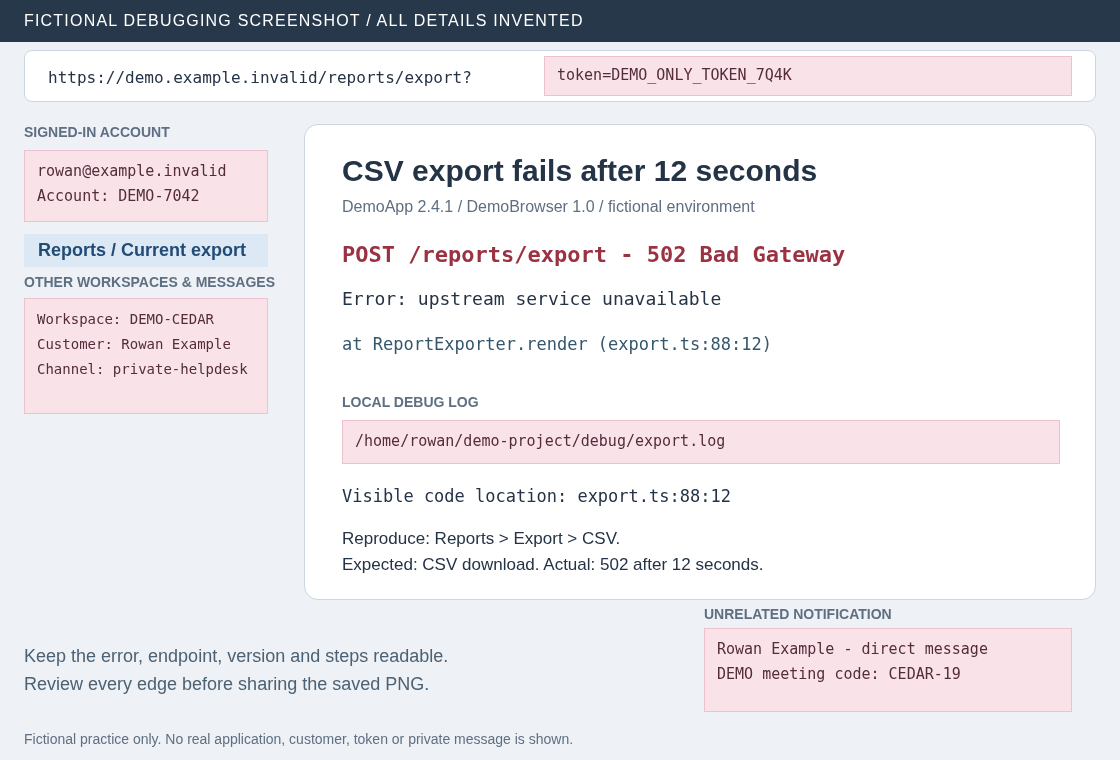
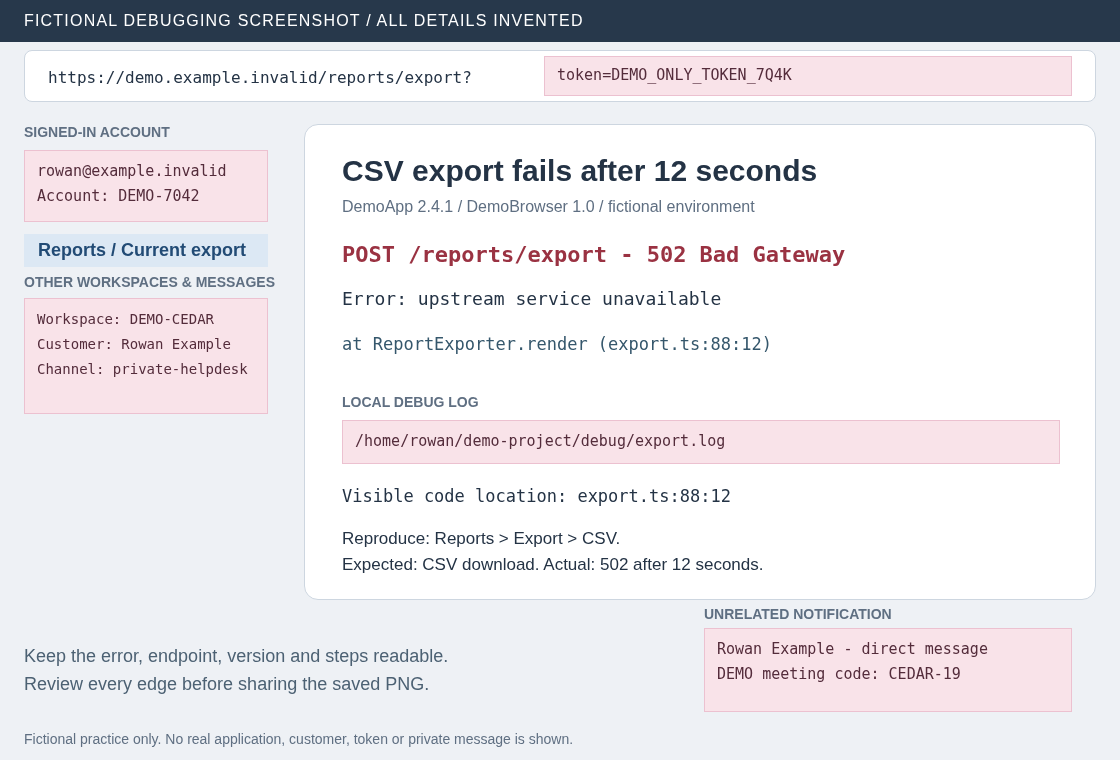
In this invented app, CSV export fails after 12 seconds. The useful evidence is POST /reports/export · 502 Bad Gateway, the upstream error, export.ts:88:12, the demo version and the Reports → Export → CSV steps. The URL query, account panel, other workspaces, home-directory path and unrelated notification are separate areas to cover.
For this 1120 × 760 sample, every pixel in the five marked areas is opaque, and every unmarked pixel matches the original. The source’s fictional Author and Description metadata fields are removed. This verifies these chosen marks and this saved file; it does not establish that every private detail in another screenshot has been found.
Metadata-clean can still show the private details
The original also has two invented PNG text metadata fields. This actual metadata-only download removes them but keeps every original image pixel, even though five marks were present in the editor. The token, account, path and messages still show. Choose Export redacted image to apply marks; a metadata-clean label alone is not a sharing decision. Inspect its separate local record.
Look beyond the error box
Decide what to cover and what to keep
Capture only the useful app area when possible. Close unrelated tabs or dismiss notifications before taking a new screenshot. If private information remains in the capture, inspect these areas manually—including repeated occurrences. What is appropriate to reveal depends on your document and audience.
Swipe the review table sideways to read every column.
A review plan, not an automatic detector
Area
Consider covering
Keep useful context where shareable
Account
Emails, account IDs, profile names and avatars
The error message and relevant app version
URL and request details
Tokens, session values, private hostnames and identifying query values
A shareable endpoint, HTTP method and status
Local paths
User directories and private project/customer names
A shareable module and line number, or a short sanitized explanation
Sidebar and background
Other workspaces, customer lists, document titles and unrelated tabs
The menu or control needed to reproduce the issue
Notifications
Senders, message previews, codes and unrelated activity
The debugging context underneath, if you can capture it separately
Repeat the complete workflow
From debugging screenshot to reviewed PNG
Open the fictional exercise deliberately
Choose Try the fictional debugging screenshot, then Load fictional debugging screenshot in the editor. Navigation alone imports nothing. Download the original to compare. Inspect Source metadata to find Fictional screenshot author and the invented account description.
Cover five areas and inspect the preview
Use the five Cover buttons to add one solid mark per sample area. Repeating a button selects its existing mark. These are fixed coordinates for this invented PNG, not recognition of accounts or secrets. Toggle Show original and Show protected, zoom in and review the edges. Keep the error, endpoint, version, stack location and reproduction steps readable.
Use manual marks on your own screenshot
Open an image from your device, or paste a copied image where supported. On a phone, saving and choosing the image file is the fallback. Use solid Redact rectangles or Brush marks with a margin around every private area; blur and pixelation are weaker obfuscation. Your screenshot needs its own geometry and review. Blivion does not request background clipboard access or fetch pasted image URLs.
Export and reopen the actual download
Keep PNG selected and choose Export redacted image. Save it under a distinct name, open it at readable zoom, and check every bar, edge and remaining detail. Compare the diagnostic context with your original. Review Verification details and the JSON record for supported cleanup checks; the record is not independent privacy certification.
Post the reviewed copy with reviewed context
Attach the newest protected download and a short, sanitized description of the expected result, actual result and reproduction steps. Review the text you paste as well. Do not also attach an original, older export or unreviewed log. Changing a source, mark, profile or output setting requires a fresh export; already saved files elsewhere are not updated by the editor.
Manual coordinates for the fictional sample
For the exact 1120 × 760 original only: add a centered redaction for each row, set Width and Height, then X and Y. The guided buttons apply the same rectangles. These values are not a preset for your own screenshots.
Redaction does not revoke a secret or clean other attachments
A real secret was already exposed
Hiding its pixels in a new image does not invalidate the secret or remove copies already shared. Follow the affected service’s revocation or rotation process. For GitHub credentials, GitHub’s exposure guidance puts revocation or rotation before repository cleanup. Blivion does not change credentials or account settings.
The report includes logs, HAR or cURL
Review those files and pasted commands separately. The screenshot export does not sanitize them. Chrome documents sanitized HAR export excluding headers such as Cookie, Set-Cookie and Authorization; that description is not proof that every URL, response body or app-specific value in your attachment is safe to publish.
The protected file still reveals context
Solid marks cover the areas you choose. Private details outside them—including avatars, filenames and repeated IDs—can remain. Reopen the saved output and review the whole image. If it is unclear what can be public, pause sharing and use the intended support channel’s data-handling instructions.