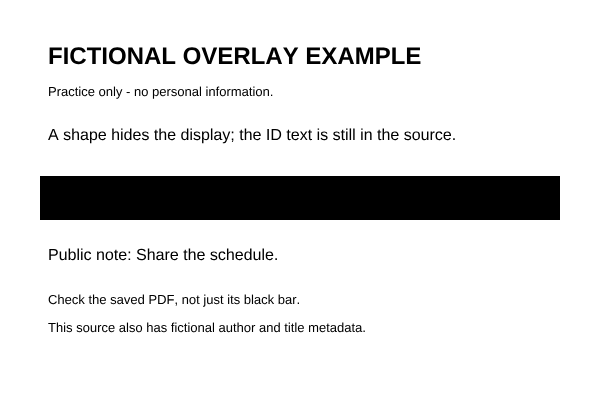
A black rectangle can cover what you see while leaving the text underneath in the file. Apply a real redaction to the covered area, export a new copy, then check that saved PDF.
Inspect the fictional failure and real corrected downloads, or try your own supported PDF locally. You mark private areas manually.
Files are processed in your browser. The editor’s recent-session feature can retain originals on this device; clear local history before leaving a shared browser.
Looks covered. The ID text is still in the file.
The saved source retains DEMO-OVERLAY-6042 underneath this shape. Compare its text with the corrected downloads below.
Appearance and file content are different
Why a black box can leave text selectable
In our source, the PDF draws the invented ID first and paints an opaque rectangle over it. The viewer renders the shape on top, but the ID’s text is still stored underneath. Text selection, copying or search can expose it depending on the viewer. The same-looking bar is therefore not evidence that the private content was removed.
Use the redaction operation in your chosen tool and complete its save or export step. For example, Adobe’s Acrobat instructions distinguish marking an area from applying redaction, offer separate hidden-information sanitization, and finish by saving the document. The Blivion example below tests its own exporter; it does not establish another tool’s behavior.
Original demonstration · fictional files only
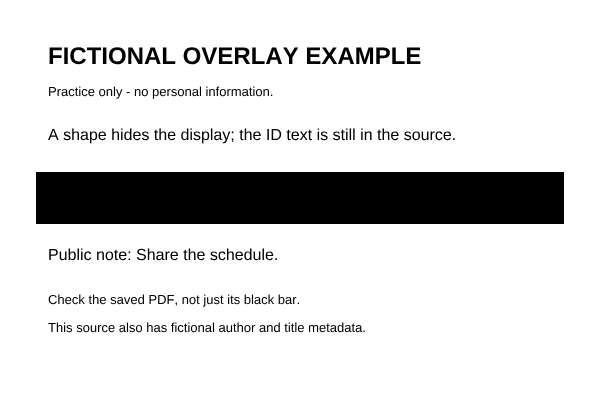
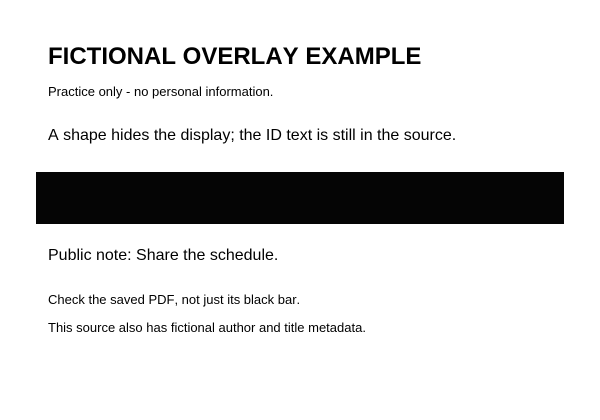
Three similar black bars, different saved content
These previews were rendered from the downloadable PDFs. The source contains a deliberate overlay failure. The two corrected copies were exported through Blivion with a solid mark extending slightly beyond the old rectangle. Open the PDFs to compare their text; a PNG preview cannot show what is in a PDF text layer.
Before: shape over retained text
The black rectangle looks complete. The invented ID DEMO-OVERLAY-6042 is still in the saved PDF text layer.
Swipe the comparison sideways to read every column.
Checks on these saved one-page examples, not a guarantee for every PDF
Saved-file check
Overlay source
Corrected native
Corrected Maximum
DEMO-OVERLAY-6042 in PDF text
Present despite black bar
Removed
No original text layer
Share the schedule
Visible and searchable
Visible and searchable
Visible as image pixels
Black area
All original bar pixels opaque; text still remains
All marked pixels opaque
All marked pixels opaque
Fictional author and title
Present
Removed
Removed
The local JSON records describe export mode, profile and cleanup checks. They are not independent certification that all private information has been found. The demonstration separately checks PDF text and saved pixels. Source metadata in the editor describes the original; Verification details describe the export.
A workflow you can repeat
Redact the covered area and review a new copy
For your own document, keep an untouched original. Use it if available so you can see which fields need removal. An already covered copy can also contain private text: the black region still needs a solid redaction.
Open the fictional source
Choose Try the fictional blackout PDF, then the editor’s Try fictional blackout PDF button. Nothing loads until you opt in. Download the original sample: search for DEMO-OVERLAY-6042 or copy its text in a PDF viewer. The ID is retained even though the bar hides it. Check Share the schedule as a public-text control.
Add a solid mark, including the edges
Use Mark sample ID for the demonstration. On your own PDF, draw solid redactions over every private area, including repeated occurrences on other pages, with a small margin around the content. Review the page list and protected preview. Blur and pixelation are weaker visual obfuscation. There is no automatic PII detection or OCR workflow here.
Export the redacted PDF
Start with Standard Clean and choose Export redacted PDF. Read the actual export-mode label: this example uses native export, which retains its public text. Other PDFs or marks may require a flattened fallback. Clean metadata only is a separate action that does not apply your marks.
Review the exported bytes, then save
Choose Review PDF output below the download. This view renders the current export without editor marks. Inspect every page and expand Check known text (optional). Try DEMO-OVERLAY-6042, then Share the schedule. Metadata matches are reported separately. Save under a new name, reopen it in a PDF viewer, and inspect every page at a readable zoom. For a native export, search or copy the marked text and the public control phrase. The ID must be absent and the public phrase present in this example. Also check the bar’s edges and unmarked context visually, then review export metadata and the local record.
Compare Maximum Clean deliberately
Keep the mark, choose Maximum Clean and export a separate copy. It rebuilds pages as images with the marks applied, losing original text selectability. Neither phrase remains in this sample’s original text layer, although the public note stays visible. A failed search is expected and cannot prove you marked everything. Recheck the saved pixels, every page and remaining visible details before sharing.
Changing marks, source or clean profile clears the current download and review; export again before checking the new copy. Batch PDF exports also offer Review output → Check known text (optional), using each output’s actual download/ZIP bytes. A miss or no extracted text cannot establish removal. Keep the visual and saved-file checks above. For repeated fields across PDFs, follow the contact-block batch review workflow.
Check that you opened the fresh redacted download, applied a solid mark to the correct page, and chose Export redacted PDF. A preview, old download or metadata-only copy is a different artifact. Mark every repeated occurrence and export again; keep the file private if the saved result is still unclear.
Nothing can be searched
Check the mode. Maximum Clean or a flattened fallback can explain lost public selectability. An image-only PDF can also start without a text layer. None of these facts establishes that visible private content is hidden. See the metadata-only counterexample where an ID stays visible despite an empty text layer.
The bar looks right, metadata remains
Visible redaction and metadata removal need separate review. Inspect supported author, title and other reported metadata in the export, and consider private information elsewhere on the pages. This demonstration does not validate every PDF structure, signature preservation, submission requirement or compliance outcome.