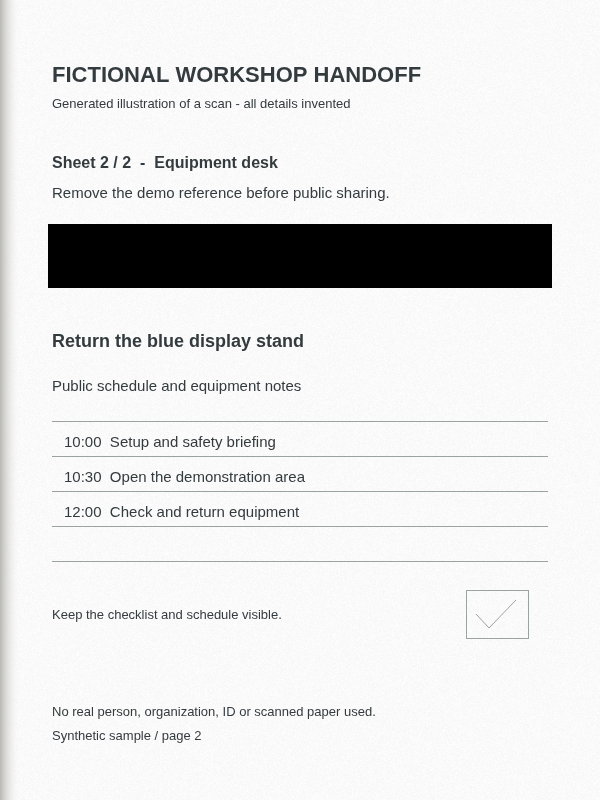
Image-only source
The reference is readable in pixels, even though PDF text extraction finds no characters.
Download image-only sourceScanned PDF redaction without text selection
Letters on a scan can be image pixels rather than selectable PDF text. In Blivion, draw a solid rectangle over the visible detail and export a reviewed PDF. You can mark the page without adding OCR. If a text layer already exists, the downloaded file needs a text check too.
Files are processed in your browser. Recent sessions can retain originals locally. Blivion does not perform OCR or automatically find private details.
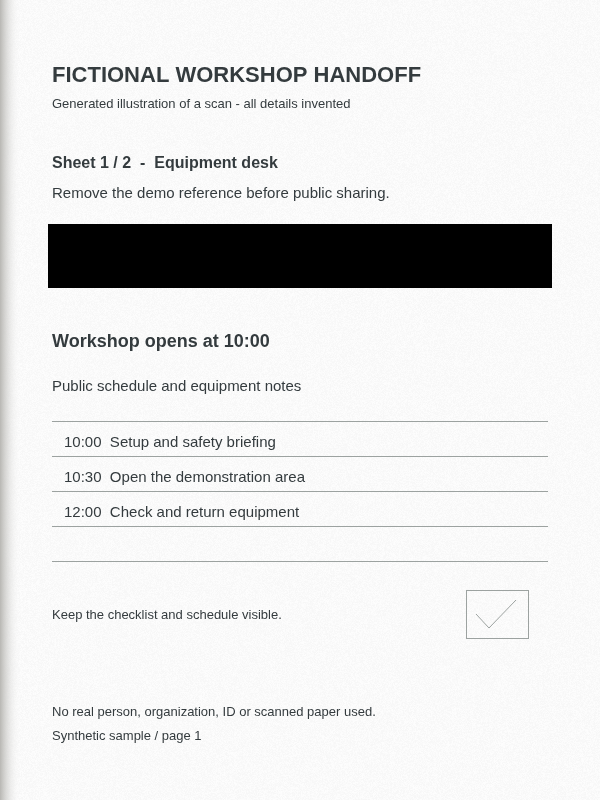
Same visible pages, different stored text
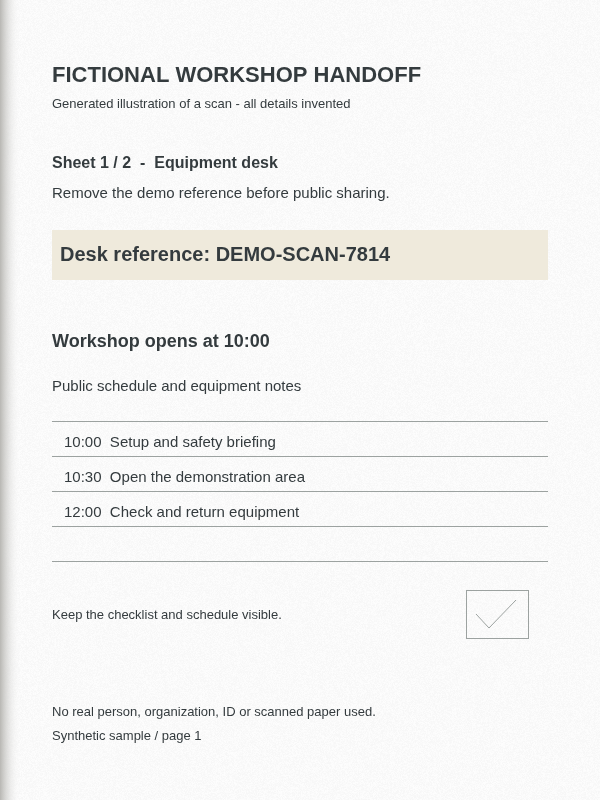
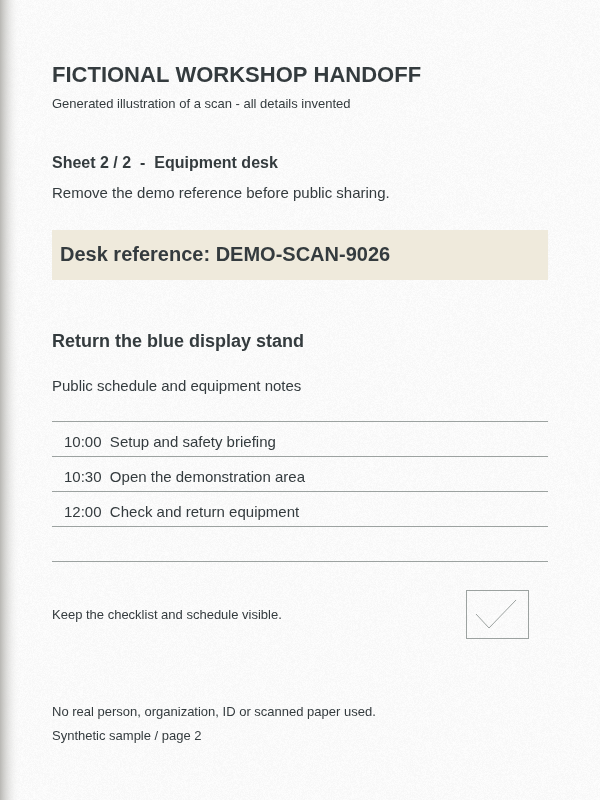
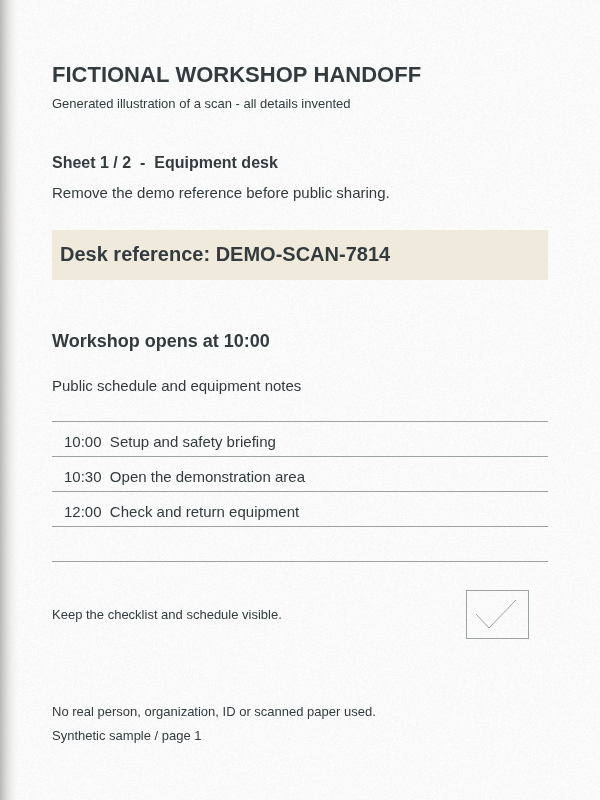
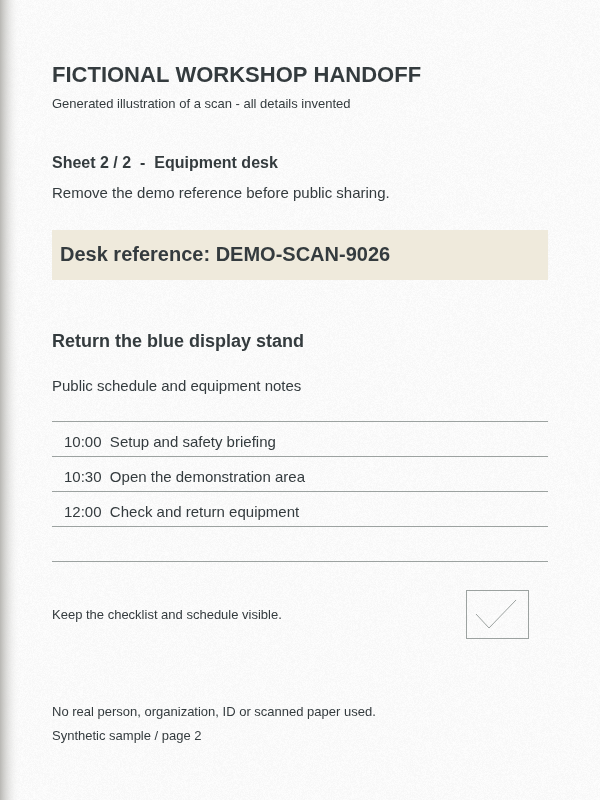
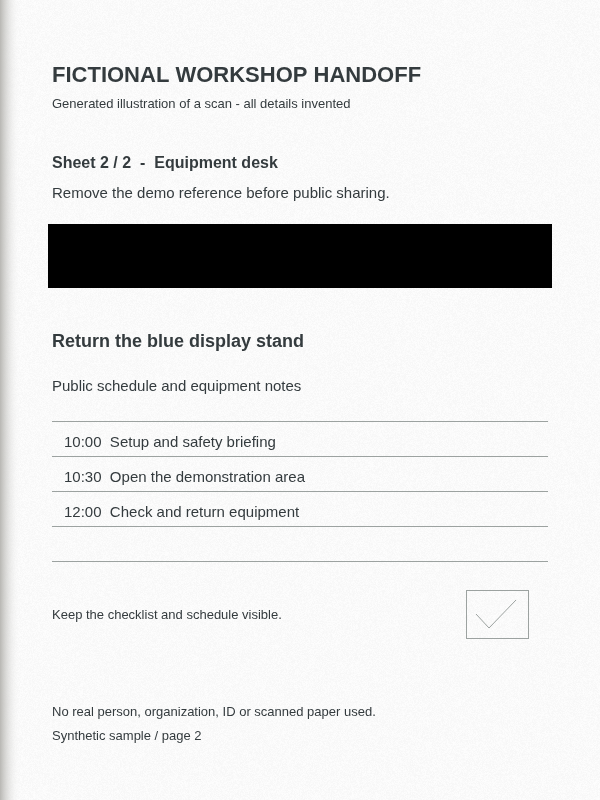
Both fictional PDFs show a two-page workshop note. DEMO-SCAN-7814 appears on page 1 and DEMO-SCAN-9026 on page 2. One input contains only page images. The other has deliberately planted invisible text for those IDs and the public notes, simulating an OCR layer without running OCR.
The reference is readable in pixels, even though PDF text extraction finds no characters.
Download image-only sourceThe artwork looks identical, but a viewer can find the IDs and public notes in the stored text. Selection behavior varies by viewer.
Download OCR-layer sourceA failed selection does not prove a PDF is image-only: the viewer, permissions or a partial text layer may be involved. Start with what is visibly on every page, rather than relying on a search result to locate all private content.
Actual saved files
These outputs were downloaded after applying one solid reference mark on each page through the regular editor. Previews were rendered from the saved PDFs. In these samples, all 64,512 selected pixels are opaque and public page pixels remain unchanged at the tested 600 × 800 rendering. These results describe the examples, not every scanner or PDF.
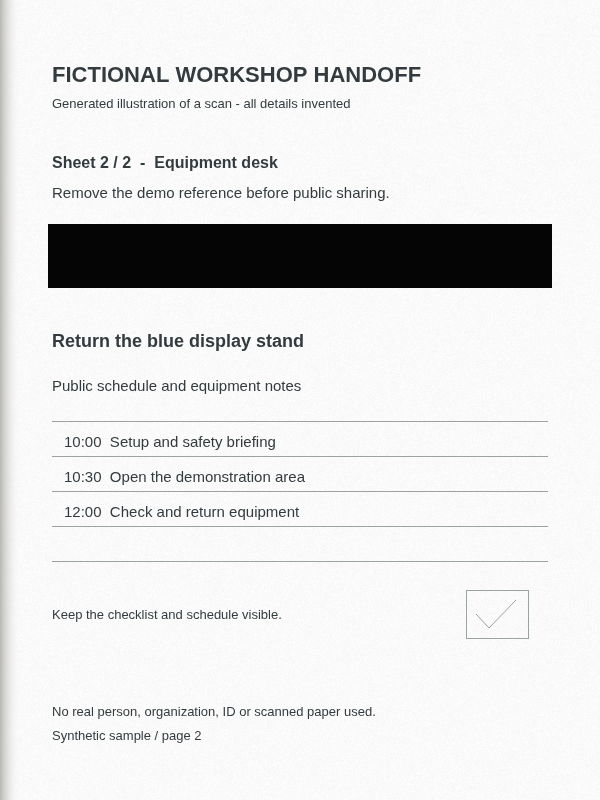
Both references are covered. The input had no PDF text; this export adds none.
Download marked image-only PDFBoth matching hidden IDs are removed. The two public notes remain searchable but invisible over the scan.
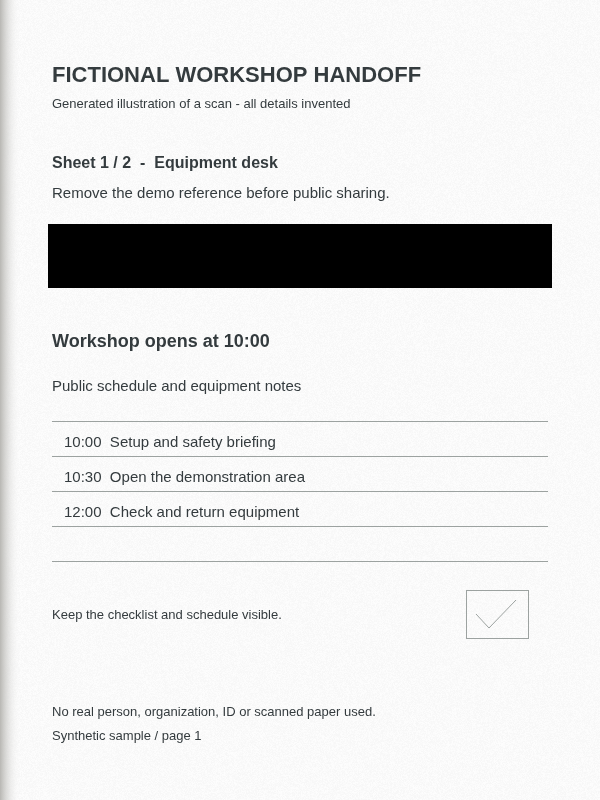 Download marked native OCR PDF
Both references are covered. The public notes remain visible as pixels; the original OCR text layer is gone.
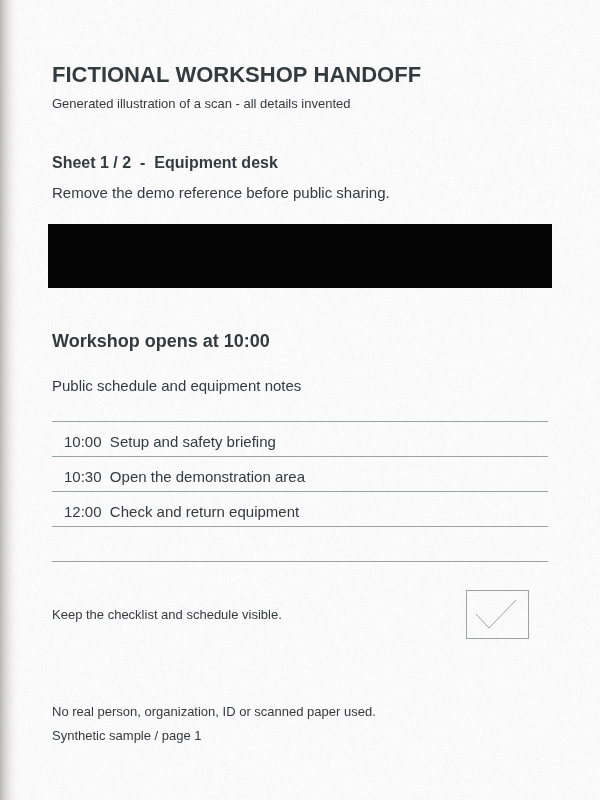 Download marked Maximum PDF
| Saved-file check | Image-only / Standard | OCR / Standard | OCR / Maximum |
|---|---|---|---|
| Both visible references | Covered | Covered | Covered |
| Known ID text in saved PDF streams | Absent before and after | Removed | Original text layer discarded |
| Workshop opens at 10:00 | Visible pixels only | Visible and searchable | Visible pixels only |
| Reported export mode | Native | Native | Flattened |
| Fictional author/title metadata | Removed | Removed | Removed |
A local record is cleanup evidence, not independent privacy certification. Native records can include removed text and the source filename. Review a record before sharing it; these public example records contain fictional details only.
Scroll sideways to compare modes.
For your own scan
Use the file picker in the local editor. Find repeated references, handwriting, stamps, labels and signatures as well as printed text. No selection or OCR is needed to draw a rectangle.
Drag over the entire private field. On a phone, or for precise placement, use Add centered redaction and edit Width, Height, X and Y. Navigate to each page and add its marks; a page without marks keeps its visible content. Blur and pixelation are unsuitable when you need to remove readable details.
Standard Clean attempts native preservation. When it is verified, an existing public text layer may remain; Blivion adds none to an image-only scan. Maximum Clean rebuilds the pages without their original text layer, reducing search and selection. Standard can also fall back to a visual rebuild; check the reported mode and warnings.
Choose Export redacted PDF. Changing marks, the source or the profile requires a fresh export. Give compared copies distinct names and open the actual new download, rather than checking the editor preview or an older file.
Zoom into every saved mark and review all pages. Search and copy known private details where a text layer exists, and check a public phrase too. OCR may be inaccurate or positioned differently from the visible letters; a mark is not a document-wide text search. If you choose a visual rebuild, inspect the public schedule, small print and page order because search will no longer test the original text.
Rotation and limits
Our extra fictional OCR input stores page 2 with a 90-degree rotation. Marking both pages through the regular editor triggers a flattened Standard Clean fallback: the visible references are covered and public content remains, while the original OCR layer is lost. This is a tested example, not a promise of native preservation for rotated scans.
Download rotated test inputThe editor has a 150-page import limit; practical capacity also depends on image resolution, file complexity and browser memory. Split large scans into manageable parts using a trusted tool, then review every output. If an authorized file cannot render or is encrypted, obtain a compatible copy. This workflow does not add OCR, detect private information or establish that all hidden information in every PDF is removed.
Adobe’s scan documentation explains that OCR converts image text into searchable, selectable text. Its redaction instructions separate marking text or images from applying and saving redactions, with a hidden-information option. Blivion’s behavior above is established by its own saved-file tests.
For a PDF already covered with a black shape whose text still copies, follow the copyable blackout example. For other export tradeoffs, see the PDF redaction guide and safety notes.