Inspect the file’s embedded location, clean supported metadata, then review what the picture itself reveals. Addresses, reflections and recognizable surroundings need their own review.
Manual marks, no automatic detection or anonymity guarantee. The exercise reads a public fictional JPEG from this site; editing stays in your browser. Recent sessions can retain originals—clear history on a shared device.
A saved editor export of a generated illustration. No real item, camera or place is used.
Two different privacy checks
GPS can be gone while an address still shows
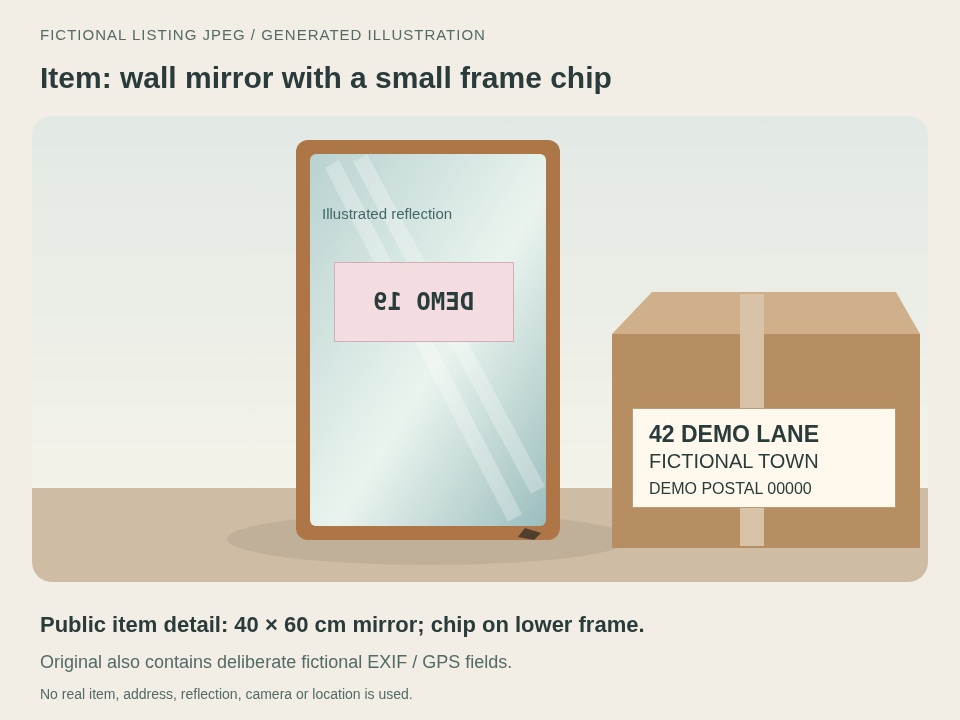
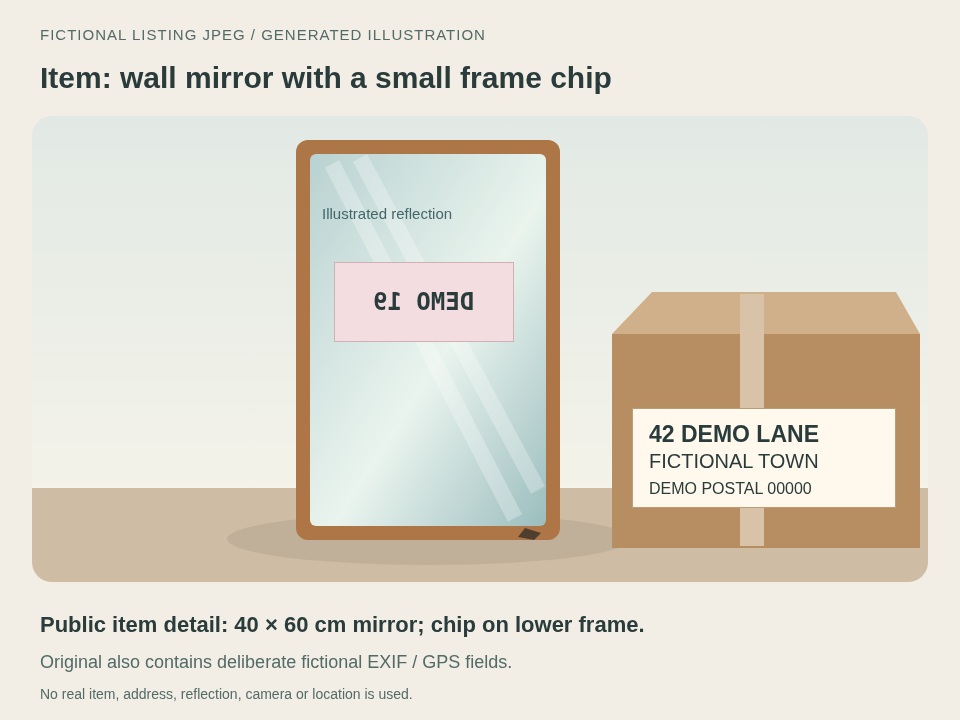
This 960 × 720 fictional listing illustration contains two visible clues and deliberate EXIF/GPS fields. GPS 0,0 was added for the exercise, not read from a device or capture location. The two outputs below came from the actual editor. Their image previews use those same saved files.
Original fictional JPEG
Deliberate GPS 0,0, Fictional camera and Fictional image author. The address label and reflected sign are visible.
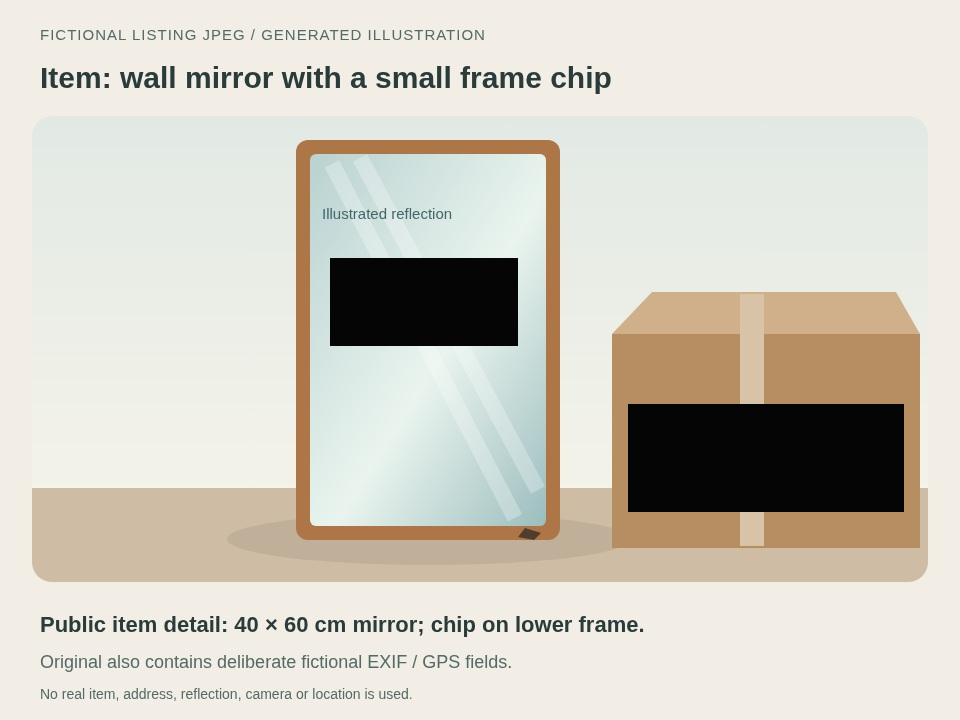
The chosen label and reflected-sign areas are solid. The mirror frame, chip, dimensions and item description stay visible. Tested source metadata is removed.
Swipe the comparison table sideways to read every column.
Verified checks for this one fictional input, not every photo or metadata type
Check
Original JPEG
Cleaned JPEG
Marked PNG
Deliberate EXIF GPS 0,0
Present
Removed
Not retained
Fictional Make and Artist fields
Present
Removed
Not retained
Address label and reflected sign
Visible
Still visible: all pixels unchanged
Both chosen areas opaque
Mirror frame, chip and public item details
Visible
Unchanged
All unmarked pixels unchanged
For this sample, metadata-only cleanup preserves every decoded JPEG pixel. The marked PNG overwrites the two rectangles while keeping the rest unchanged. This is sample-specific evidence, not a lossless promise for every format. The local JSON records describe supported cleanup checks; they are not independent certification that every identifying detail was found.
A complete file-and-picture review
Check the actual copy you intend to post
Open and inspect the original
Choose Try the fictional listing JPEG, then Load fictional listing JPEG in the editor. Navigation alone imports nothing. In Source metadata, find Fictional camera, Fictional image author and GPS 0,0. Download the original for comparison. For your own item, use a compatible JPEG or PNG. Blivion does not open HEIC/HEIF.
Clean the embedded fields
Keep Standard Clean and choose Clean metadata only. Download the actual JPEG, reopen it and review Verification details. The tested source EXIF/GPS fields should be gone; both invented visible clues should remain. Source metadata in the editor still describes the original, not the latest export. A missing map label or lack of GPS by itself does not establish that a file has no other identifying information.
Review pixels, reflections and surroundings
Read labels, house numbers, mailing documents and screens. Look in mirrors, glossy surfaces and windows; inspect recognizable buildings, room details, people and vehicle plates. A metadata tool cannot hide visible content through cleanup alone. Move labels out of frame or retake the photo against a neutral background when that preserves a clearer, truthful view of the item.
Mark chosen clues and preserve the item
For the exercise, use Cover address label and Cover reflected sign. Those buttons add fixed sample rectangles, not address/reflection detection. On your own picture, use solid Redact or Brush marks with a margin and inspect every occurrence. Blur and pixelation are weaker obfuscation. Keep condition, defects and useful item details visible; retake the picture if a mark would hide them.
Export, reopen and review the final file
Keep PNG selected and choose Export redacted image. Reopen this new download at readable zoom, inspect both bars and their edges, and review the entire image plus its reported metadata. Re-importing the actual saved copy can help inspect supported fields. Metadata-only cleanup ignores drawn marks. Changing the source, profile, output settings or marks requires a fresh export; older saved files elsewhere are not updated.
Use the reviewed copy for each listing image
Select the checked download when you post. Review every other image and the listing text separately, and avoid attaching originals or unreviewed copies. We have not verified any marketplace’s upload processing, format acceptance or metadata retention. Cleaning the file and chosen pixels does not make a listing anonymous or remove copies already shared.
Manual coordinates for this fictional sample
For the exact 960 × 720 original only: add one centered redaction for each row, set Width and Height, then X and Y. These values are not a preset for your own photos.
Review the file, not just the app’s location display
Google Photos
Google’s location guidance distinguishes camera-provided GPS, manually added locations and estimates. It warns that location edits inside Photos do not change the original camera location carried when files are shared outside Photos, such as downloads. It also notes that landmarks can reveal a location even when location sharing is hidden. Inspect your actual listing file and picture separately.
iPhone format and metadata options
Apple’s sharing guide describes format options; Most Compatible may convert files to JPEG or MOV. It also says All Photos Data can share originals with edit history and metadata through AirDrop. Those options do not prove a particular file-picker or listing route is sanitized. This walkthrough does not validate every device/share path or provide HEIC conversion.
Other metadata tools
Local inspection and cleanup are also offered by RemoveMetadata.tools’ listing-photo guide and exif.tools. Their published claims are not tested here. Our comparison shows the actual JPEG and PNG saved by Blivion, including the visible-clue limit. Compare the saved file and visible content whichever workflow you choose.